
Changelog

Follow new updates and improvements to Padlet Arcade.

See how your class did with insights 📊
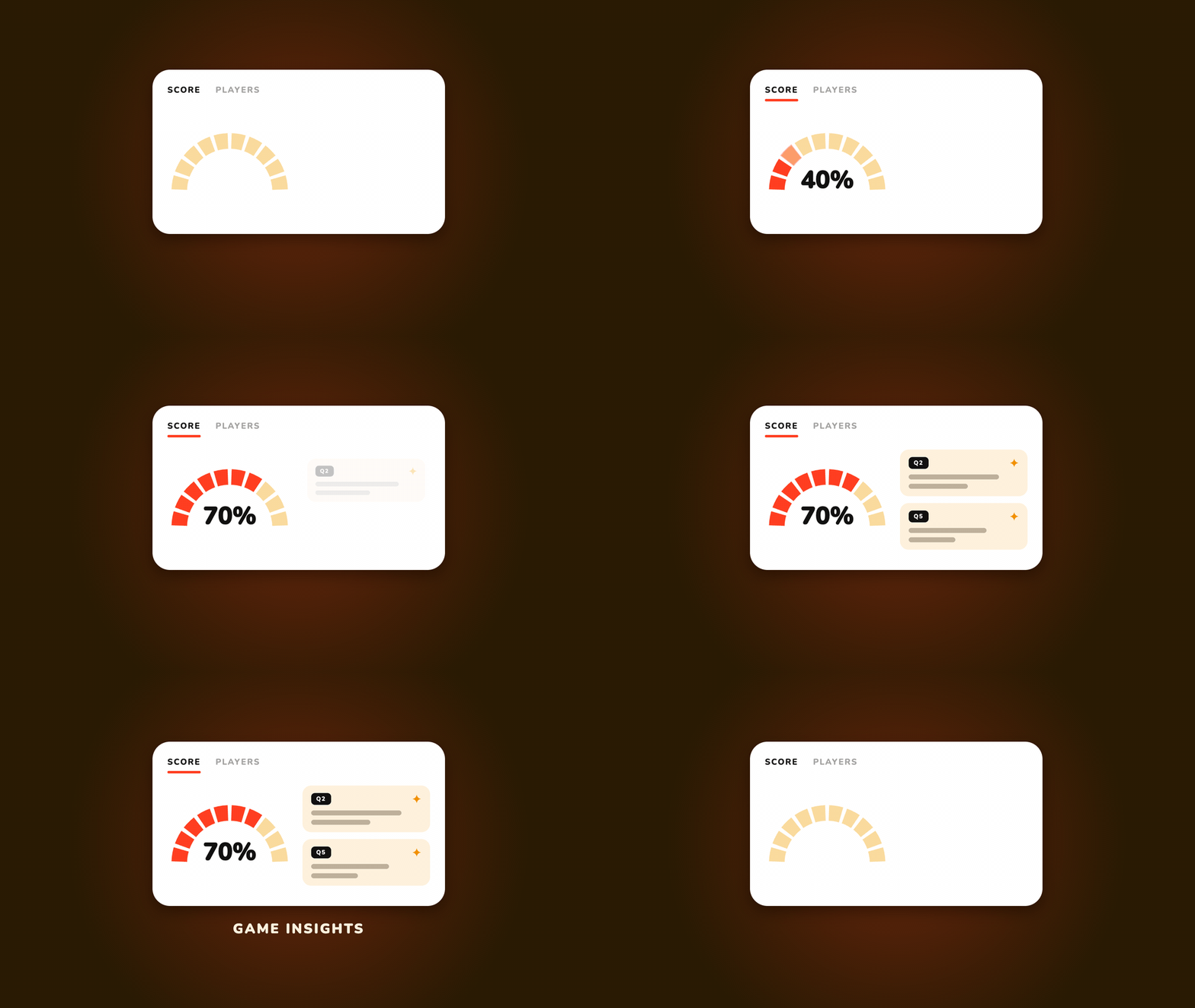
Now you can open insights on any game you've made and see how your class really did, question by question, with takeaways that call out the questions that tripped students up. Spot a gap, then build a follow-up game in one click.

How it works

  1. Share your game with your students like you normally would and let a few plays roll in.

  2. Once your class has played, open the game and click the INSIGHTS button at the top of the page.

  3. Click the button to generate insights for your game. Your students’ answers are analyzed and the report is written up.

  4. Flip between the Score and Players tabs to move between the class picture and individual results.

  5. Want to go over areas that students struggled with? Scroll down to the follow-up game section and press Build to get a game to help fill in the gaps.

What you'll see

  • Score tab: a gauge of how the class did overall, with summaries for questions that students struggled with and where they did well.

  • Players tab: a player count on the gauge and a score list showing how each player did.

  • A follow-up game suggestion: a game idea aimed at what your class found hardest, with Build and Explore right there.

Good to know

  • Only you, the game's creator, can see insights. Players and anyone else with the link never see it.

  • At least one person has to play before you can generate insights.

  • Insights can only be generated for games created after June 15, 2026.

  • Insights are generated based on each players’ first attempt on a game. Controlling which attempts are used will be available in the future.

  • Editing questions or answers will reset insights by removing any plays on earlier game versions. Cosmetic changes like updating the title or instructions will not affect insights.

New

Quickly find your games with Recents

Your most recent Arcade games now greet you the moment you arrive, whether you are signed in or not. Recents gathers everything you have played, created, saved, or edited into one row on the homepage and the new default tab in the “My games” page, so jumping back in takes a single click.

Where to find it

  1. Open the Arcade homepage. Once you have five or more recent games, a Recents row appears near the top, with arrows to scroll through it.

  2. Open My Games. It now starts on the Recents tab, with your full history, however many games you have.

What shows up

  • The games you have played, created, saved, or edited, most recent first.

  • Games you made that other people just played. New plays bring a game back to the top, so you can see your class picking it up.

  • Each game appears as a card you can recognize at a glance and reopen in one click.

  • Signed out? You will still see the games you have played in this browser.

Good to know

The homepage row stays hidden until you have five or more recent games, so a fresh start never looks cluttered, while the Recents tab in My Games always shows even with a single game. Recents now works for every visitor. Before this, it was limited to a small internal group, and everyone else saw the older Played tab.

New

Upload your own images 🖼️

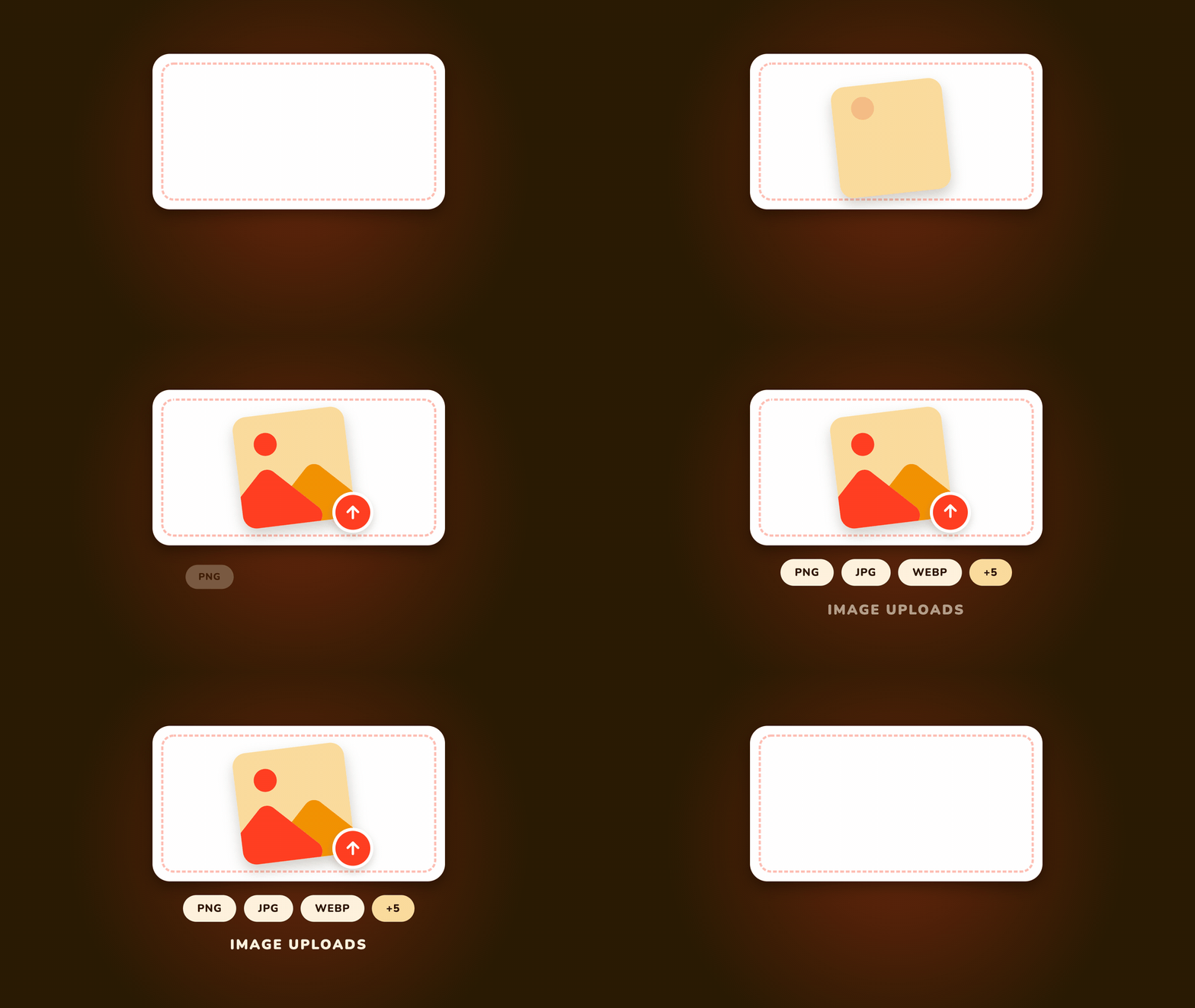
Now you can put your own images into any game. Drop a photo into the game editor's image picker and it lands right on the card, tile, or clue you're editing.

How to upload

  1. Open a game you created and head to the content tab of the edit panel.

  2. Click the image button on any card, tile, question, or clue.

  3. Drag a photo into the upload area, or click it to pick a file from your device.

  4. Your image shows up as a preview. Hit "Done" to add it to the game.

What you can upload

  • PNG, JPG, WEBP, HEIC, TIFF, AVIF, BMP, and GIF files, up to 25MB each

  • One image per card, tile, question, or clue, and you can swap it anytime

  • Works in every game type that uses images

Keeping it classroom-safe

Every upload is checked automatically before players can see it. If an image gets flagged, only you see a small red marker on it in the editor letting you know it won't be shown to players, so you can swap it out. Players never see a flagged image.

Good to know

The upload area appears in the image picker before you search, so if results are already showing, clear the search to get back to it. Audio uploads aren't available yet, but you can still generate audio in the editor.

New

Earlier updates