September 9th, 2026
New
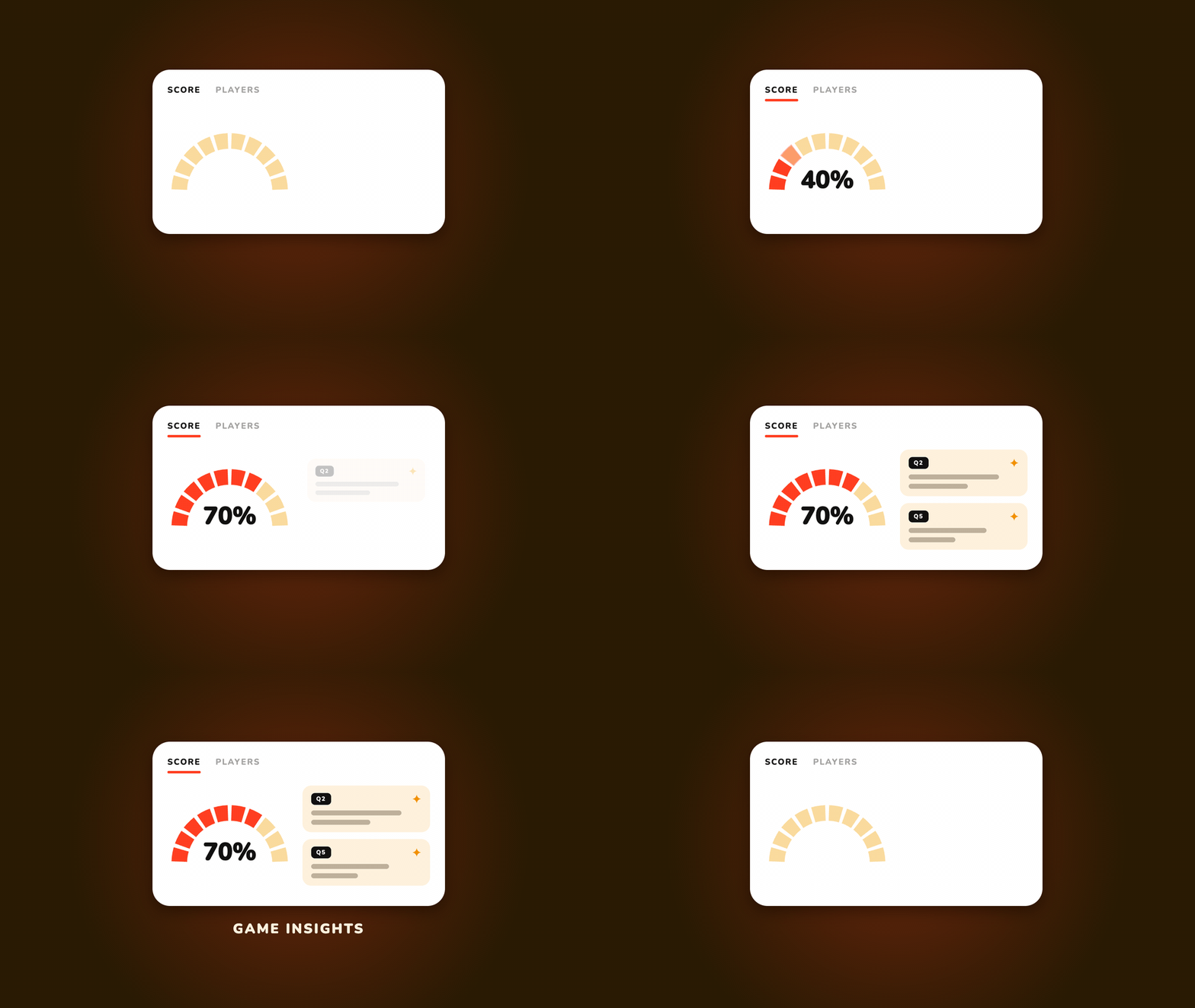
See how your class did with insights 📊
Now you can open insights on any game you've made and see how your class really did, question by question, with takeaways that call out the questions that tripped students up. Spot a gap, then build a follow-up game in one click.
How it works
Share your game with your students like you normally would and let a few plays roll in.
Once your class has played, open the game and click the INSIGHTS button at the top of the page.
Click the button to generate insights for your game. Your students’ answers are analyzed and the report is written up.
Flip between the Score and Players tabs to move between the class picture and individual results.
Want to go over areas that students struggled with? Scroll down to the follow-up game section and press Build to get a game to help fill in the gaps.
What you'll see
Score tab: a gauge of how the class did overall, with summaries for questions that students struggled with and where they did well.
Players tab: a player count on the gauge and a score list showing how each player did.
A follow-up game suggestion: a game idea aimed at what your class found hardest, with Build and Explore right there.
Good to know
Only you, the game's creator, can see insights. Players and anyone else with the link never see it.
At least one person has to play before you can generate insights.
Insights can only be generated for games created after June 15, 2026.
Insights are generated based on each players’ first attempt on a game. Controlling which attempts are used will be available in the future.
Editing questions or answers will reset insights by removing any plays on earlier game versions. Cosmetic changes like updating the title or instructions will not affect insights.